
About Patchman
Did you know over 10 million sites are hacked each year? Not only can hacked sites ruin years of hard work, they can ruin your reputation and be costly to fix. Patchman helps prevent this from happening to you. Freedom Host USA has partnered with Patchman to provide free vulnerability and malware scans for web hosting accounts.
Patchman provides the following features:
- Infected files quarantine: Patchman scans your site for infected files. If it detects any vulnerabilities, Freedom Host Support immediately sends you a notification e-mail that describes them. If you do not resolve the vulnerability within 24 hours, Patchman automatically quarantines the affected file or files.
- Application patching: Patchman detects if a WordPress, Drupal, or Joomla installation requires patching. If this is the case,Freedom Host Support immediately sends you a notification e-mail that describes the application vulnerability. If you do not resolve the vulnerability (usually by updating to the latest version) within two days, Freedom Host Support sends a reminder e-mail. If the vulnerability remains unresolved for one week, Patchman applies the patch automatically.
- Outdated version detection: Patchman detects if certain web applications are outdated. If this is the case, Freedom Host Support immediately sends you a notification e-mail that lists the application (or applications) that should be updated. If the application remains outdated for one week, you receive a reminder e-mail.
It is important to note that Patchman only patches specific security vulnerabilities. Updating an entire application all at once can frequently break a website's functionality because of its plugins, themes, and other dependencies. Patchman works differently by only backporting specific security fixes to ensure vulnerabilities are patched, leaving the rest of the installation intact.
Accessing Patchman
If you have a web hosting account, Patchman is already enabled for your domain. To access the Patchman dashboard page, follow these steps:
- Log in to cPanel. -- If you do not know how to log in to your cPanel account, please see this article.
- In the ADVANCED section of the cPanel home screen, click Patchman:

The Patchman dashboard page appears:

Managing Patchman for your account
Patchman runs on the server in the background, and usually does not require any additional configuration by you. However, there are a few settings you can view on the dashboard, and there may be times when you need to do some administrative tasks there.
The following settings are available on the Patchman dashboard:
- Detected applications: To display a list of detected applications, as well as whether or not they are outdated, click Applications (
 ).
). - Perform scan: To run a scan manually, click Perform scan (
 ). Patchman runs a scan of your account immediately.
 - Detected items actions: Detected vulnerabilities appear in a list that includes the detection date, status, description, and path of the vulnerability. For each vulnerability, there is an Actions (
 ) icon you can click to see the available actions. Additionally, when you click the check box for a vulnerability, the Bulk actions options appear:
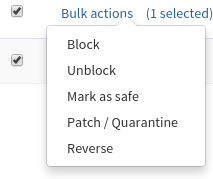
In the unlikely event a patch breaks your website's functionality, you can always click Undo patch under Actions (or Reverseunder Bulk actions) to undo the patch until you determine the cause of the problem. To reapply the patch, click Patch under Actions (or Patch / Quarantine under Bulk actions).
Patchman e-mail messages
Patchman sends e-mail messages describing available patches, quarantined files, and updated software. These messages are sent to the cPanel contact. However, you may want to send these messages to someone other than the account owner, such as a developer or IT manager. For information about how to change the cPanel contact, please see this article.
More Information
For more information about Patchman, please visit http://patchman.co.
