
DMARC (Domain-based Message Authentication, Reporting and Conformance) is an e-mail authentication method designed to help reduce e-mail abuse, such as spam. It builds upon the SPF (Sender Policy Framework) and DKIM (DomainKeys Identified Mail) authentication methods to provide e-mail senders and recipients a more reliable way to exchange messages.
You can use cPanel's DNS Zone Editor to add DMARC settings to your DNS records. You can also use cPanel to configure your mailing lists to be compatible with DMARC.
Configuring a DMARC TXT record in DNS
To enable DMARC for your domain, you must add a TXT record to your domain's DNS entries that contains the DMARC configuration data. To do this, follow these steps:
- Log in to cPanel.
- Open the Zone Editor:
- If you are using the Jupiter theme, on the Tools page, in the Domains section, click Zone Editor:

-
If you are using the Paper Lantern theme, in the DOMAINS section of the cPanel home page, click Zone Editor:
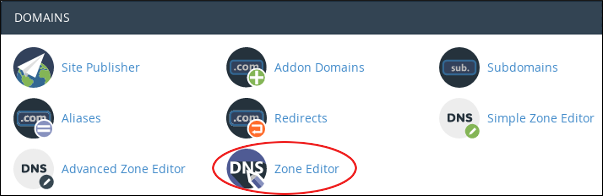
- If you are using the Jupiter theme, on the Tools page, in the Domains section, click Zone Editor:
-
Locate the domain you want to configure, and then click Manage.
- Click the down arrow icon next to Add Record, and then click Add TXT Record.
-
In the Name text box, type _dmarc.
When your cursor leaves this text box, cPanel automatically adds the domain name to _dmarc, for example, _dmarc.example.com. - In the TTL text box, type 14400.
- In the Type list box, select TXT.
-
In the Record text box, type the DMARC configuration line.
DMARC is not yet a fully standardized protocol. As a result, different providers handle DMARC policies in different ways. You may have to experiment with various DMARC configurations to find the one that works best for your domain. Here are some example DMARC configurations:
- Enable DMARC “monitor mode”. With this configuration enabled, the specified e-mail address (in the mailto setting) receives daily reports from providers regarding how many messages were received, and whether or not they passed policy checks:
v=DMARC1;p=none;rua=mailto:postmaster@example.com
-
Instruct the recipient to quarantine all messages (100%) that do not pass policy checks:
v=DMARC1;p=quarantine;pct=100;
-
Instruct the recipient to reject half of all messages (50%) that do not pass policy checks. The remainder should be quarantined:
v=DMARC1;p=reject;pct=50;
- Enable DMARC “monitor mode”. With this configuration enabled, the specified e-mail address (in the mailto setting) receives daily reports from providers regarding how many messages were received, and whether or not they passed policy checks:
- Click . cPanel adds the TXT record for DMARC.
